An all-in-one mobile companion app to discover your scooter, pair ADB keys, and manage settings directly from your Android phone without a PC.
The open-source Axiom Android app packages the entire discovery, gRPC diagnostic communication, and ADB key pairing workflow into a single mobile application.
Finding Your Scooter’s IPv4 Address (Optional)
Section titled “Finding Your Scooter’s IPv4 Address (Optional)”Connecting over IPv4 using your local Wi-Fi subnet is often the most convenient method. If you do not have access to your router’s administration page to find the DHCP client lease, you can view the assigned IPv4 address directly on the scooter’s touchscreen:
-
Open Wi-Fi Settings: On your scooter display, open the settings menu and navigate to Wi-Fi.
-
Select Connected Network: Tap directly on the Wi-Fi card you are currently connected to.
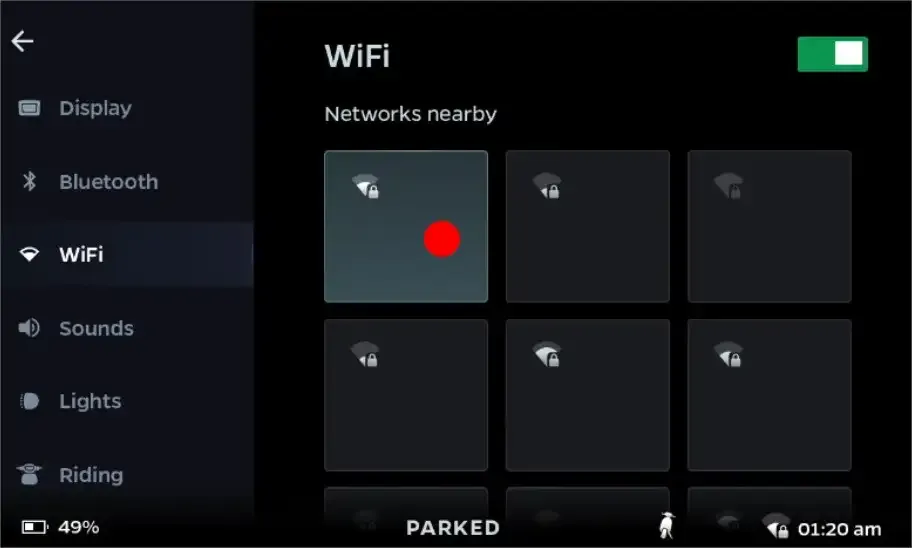 Tap on the active Wi-Fi network card to open its connection details.
-
Locate IPv4 Address: The network details screen will display your scooter’s current network configuration:
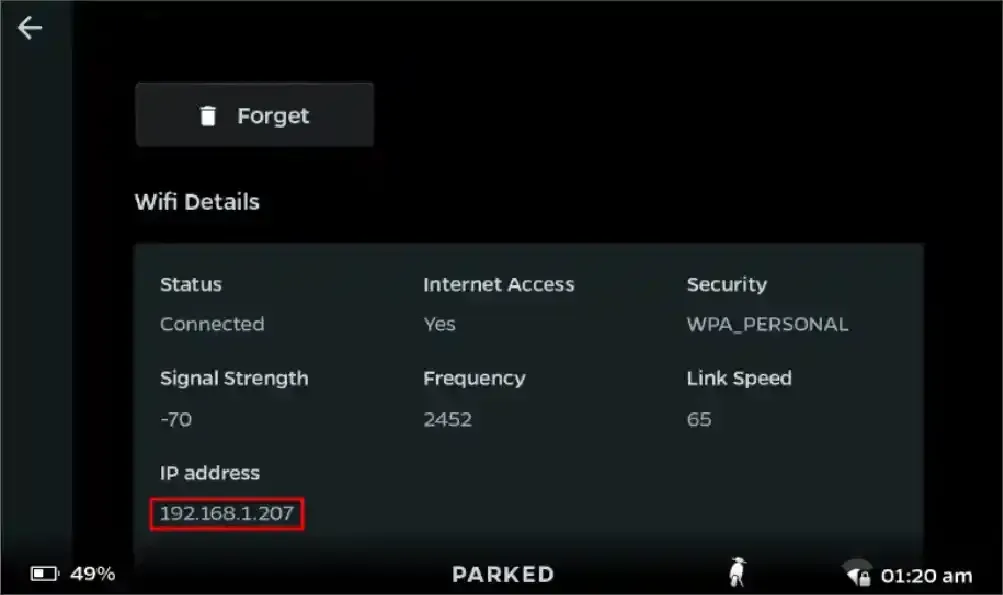 Your IPv4 address is shown on this screen.
Getting Started with the App
Section titled “Getting Started with the App”-
Download and Install the Application:
Visit the official releases repository and download the latest version:
- Download Link: Axiom Releases on Codeberg
Download
app-release.apkfrom the latest release, open the file on your Android device, and proceed with the installation. (If prompted, allow your browser or file manager permission to install unknown apps). -
Launch the App:
Open Axiom from your home screen or app drawer and tap Get Started to proceed to the connection setup.
-
Choose Your Connection Method:
The app presents three connection methods based on your network environment:
- Direct IP Connection: Use this if IPv4 access is already unblocked on your scooter (such as when manufacturing mode is already active). Simply input the scooter’s IPv4 or link-local address and tap connect.
- Discover Neighbors: Best when both your phone and scooter are connected to a standard Wi-Fi network (such as a home router). Note that standard mobile hotspots typically fail here because Wi-Fi AP client isolation blocks devices from communicating directly with each other.
- Shizuku Discovery: Recommended if you are connected via a mobile hotspot (or hosting the hotspot directly from your phone). By pairing with Shizuku, the app inspects kernel neighbor tables with elevated permissions to discover the scooter’s link-local IPv6 address. It then connects over IPv6, which succeeds in most hotspot environments because AP client isolation typically only blocks IPv4 traffic.
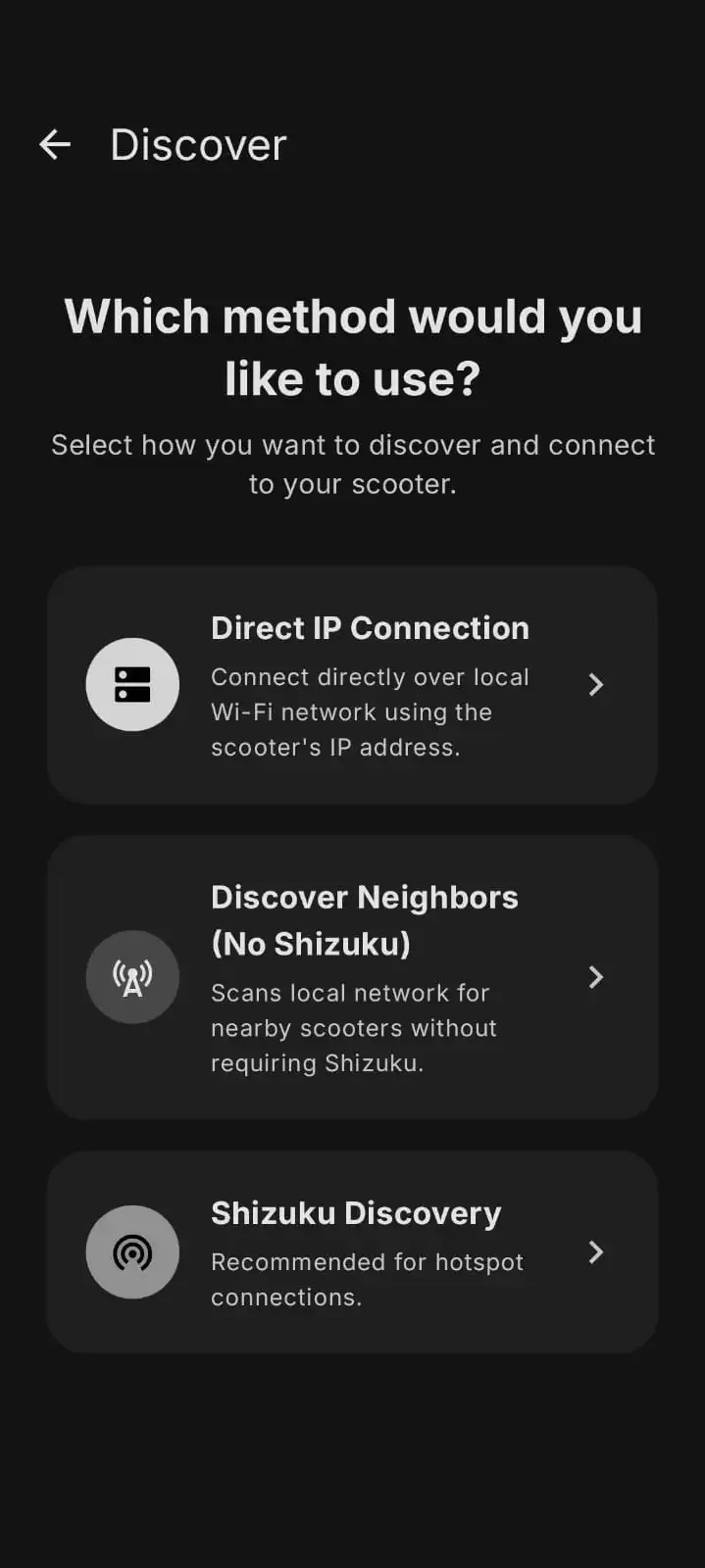 Select the connection method that best matches your network setup.
-
Scan and Select Your Scooter:
Once scanning begins, the app listens for the scooter’s diagnostic service on TCP port
50005. When your scooter appears in the list, tap on it to establish a connection.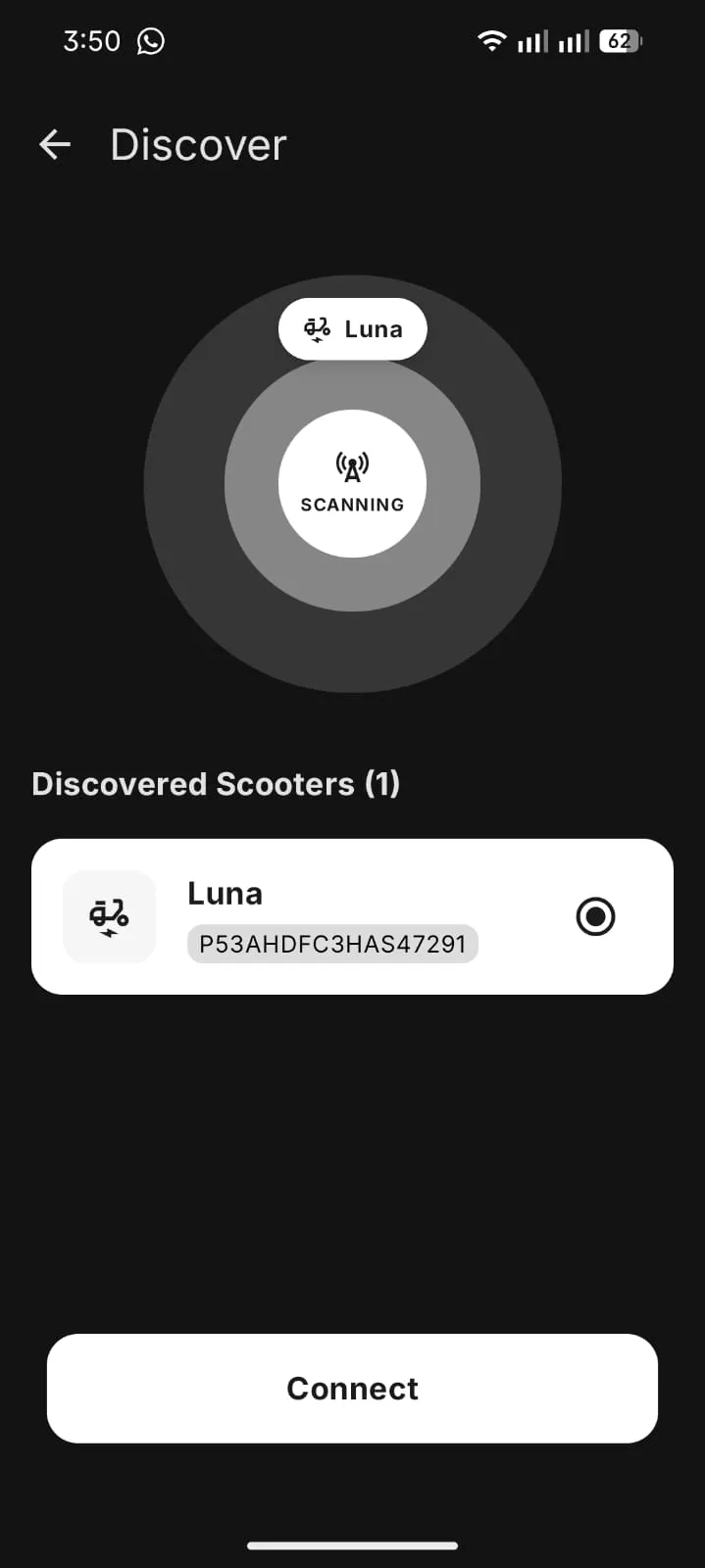 Tap on your discovered scooter to connect.
-
Access Basic Diagnostics:
Once connected, the app opens an active gRPC session to your head unit. You can now access and view your scooter’s basic diagnostic readings, device status, and telemetry directly from your phone.
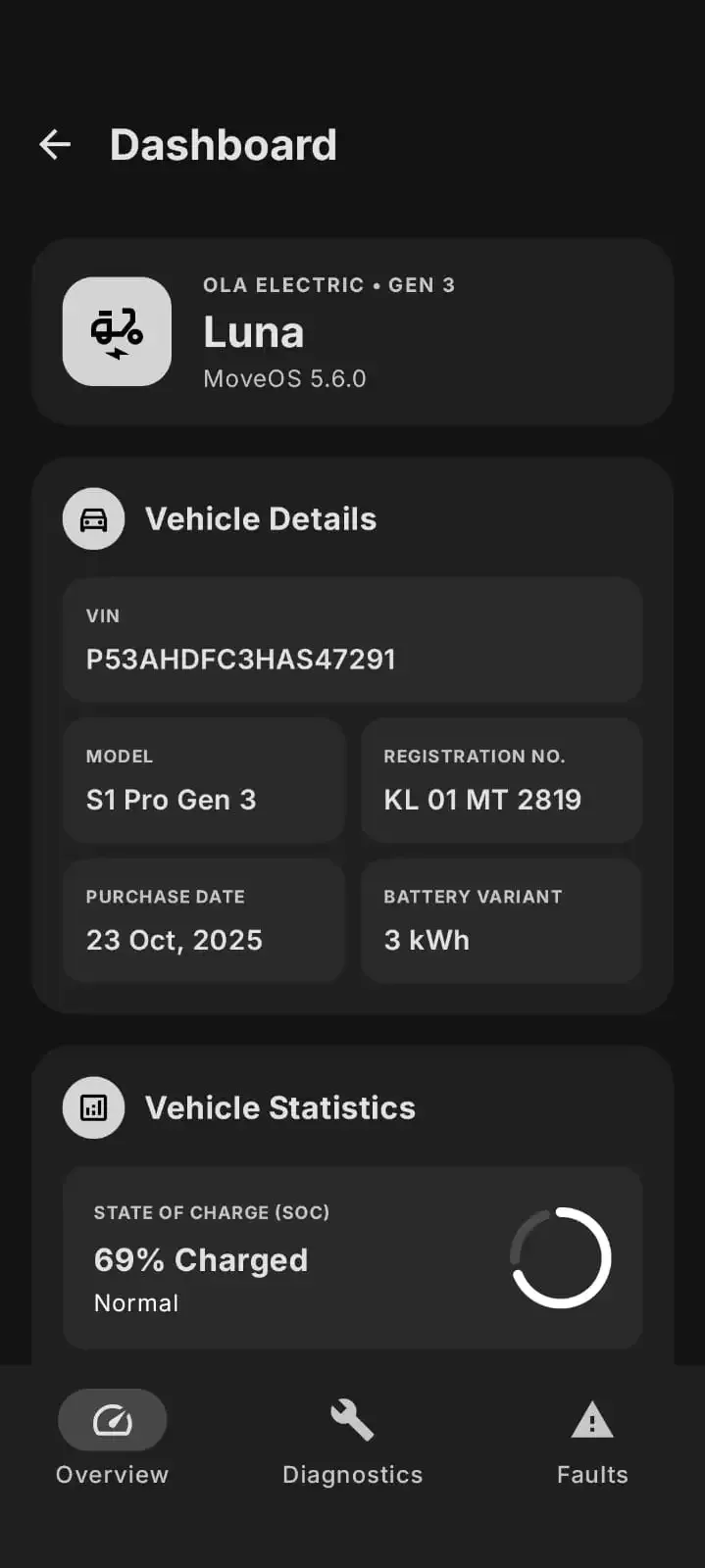 View vehicle telemetry and diagnostic status directly in Axiom.
Using Features in the App
Section titled “Using Features in the App”Once connected, navigate to the Control tab at the bottom of the screen to access advanced head unit controls, terminal access, application management, and vehicle operation modes.
Executing Root Shell Commands
Section titled “Executing Root Shell Commands”You can execute shell commands directly on the scooter from the integrated terminal in the ADB card:
- Choose an Execution Method:
- gRPC (Recommended): Directly executes shell commands through the diagnostics service. It is significantly faster and does not require ADB daemon pairing.
- ADB: Routes commands through a wireless ADB session.
- Both methods can give you root access.
- Tap Open Terminal to launch the interactive shell session.
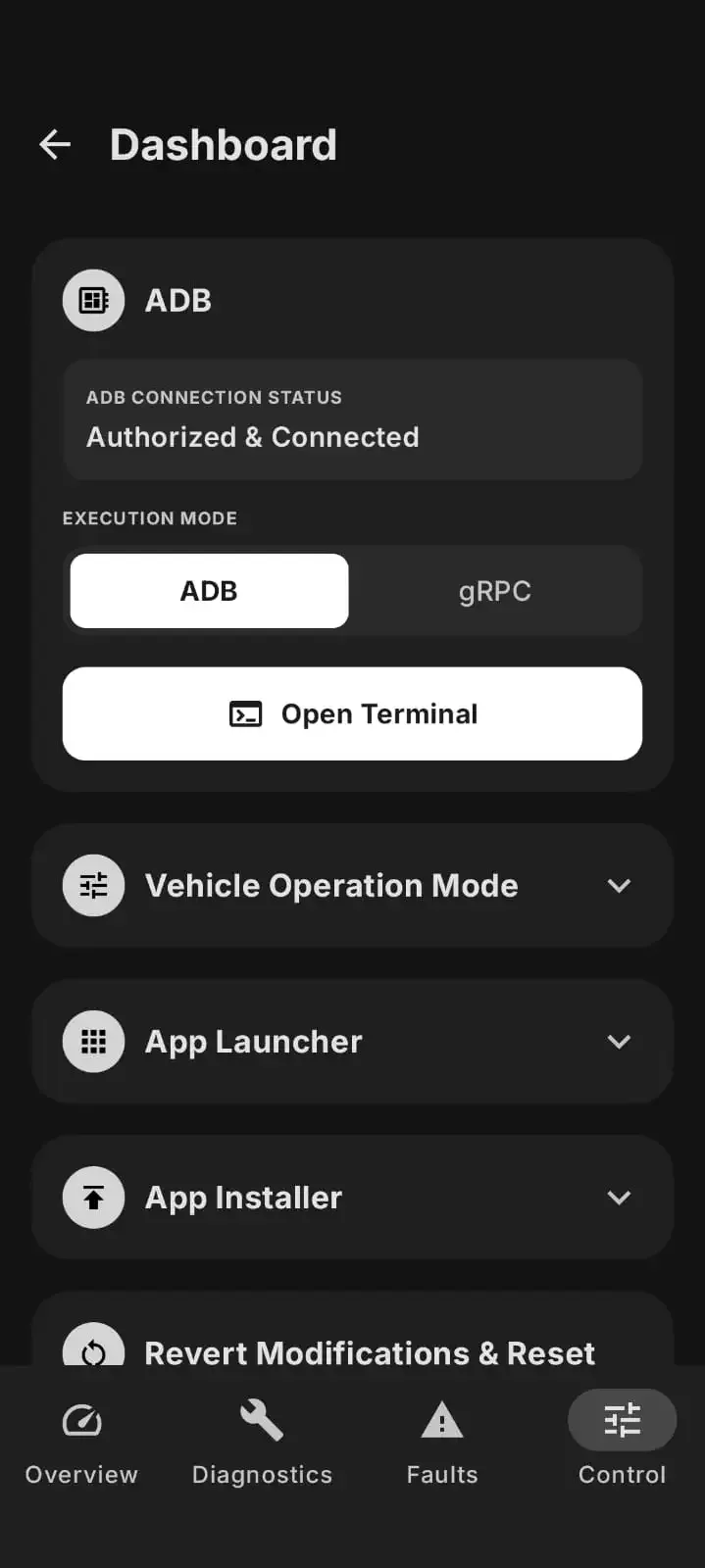 Select an execution method and tap Open Terminal.
- In the terminal window that opens, enter any commands you wish to execute. If you chose the ADB execution method, run the
sucommand to elevate to root.
Launching Apps
Section titled “Launching Apps”You can launch any installed application directly on your scooter’s display:
- Scroll down to the App Launcher card in the Control tab.
- Search for the app you want to open.
- Tap Launch. The application will open immediately on the scooter’s touchscreen.
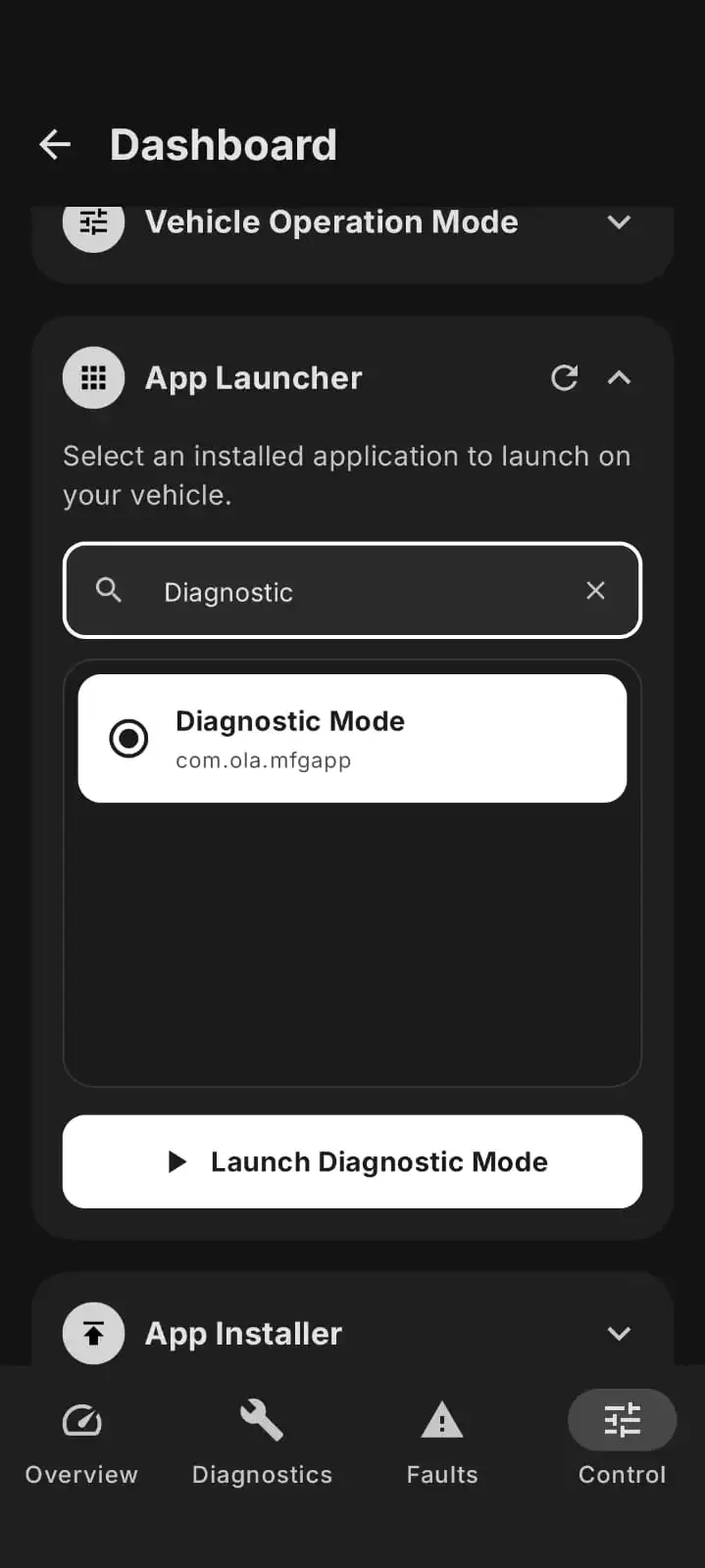 Search for and launch installed applications on the scooter.
Installing APKs
Section titled “Installing APKs”You can sideload third-party Android applications directly onto your scooter:
- Scroll down to the App Installer card in the Control tab.
- Tap to select the
.apkfile you want to install from your phone’s storage. - Tap Install to upload and install the package on your scooter.
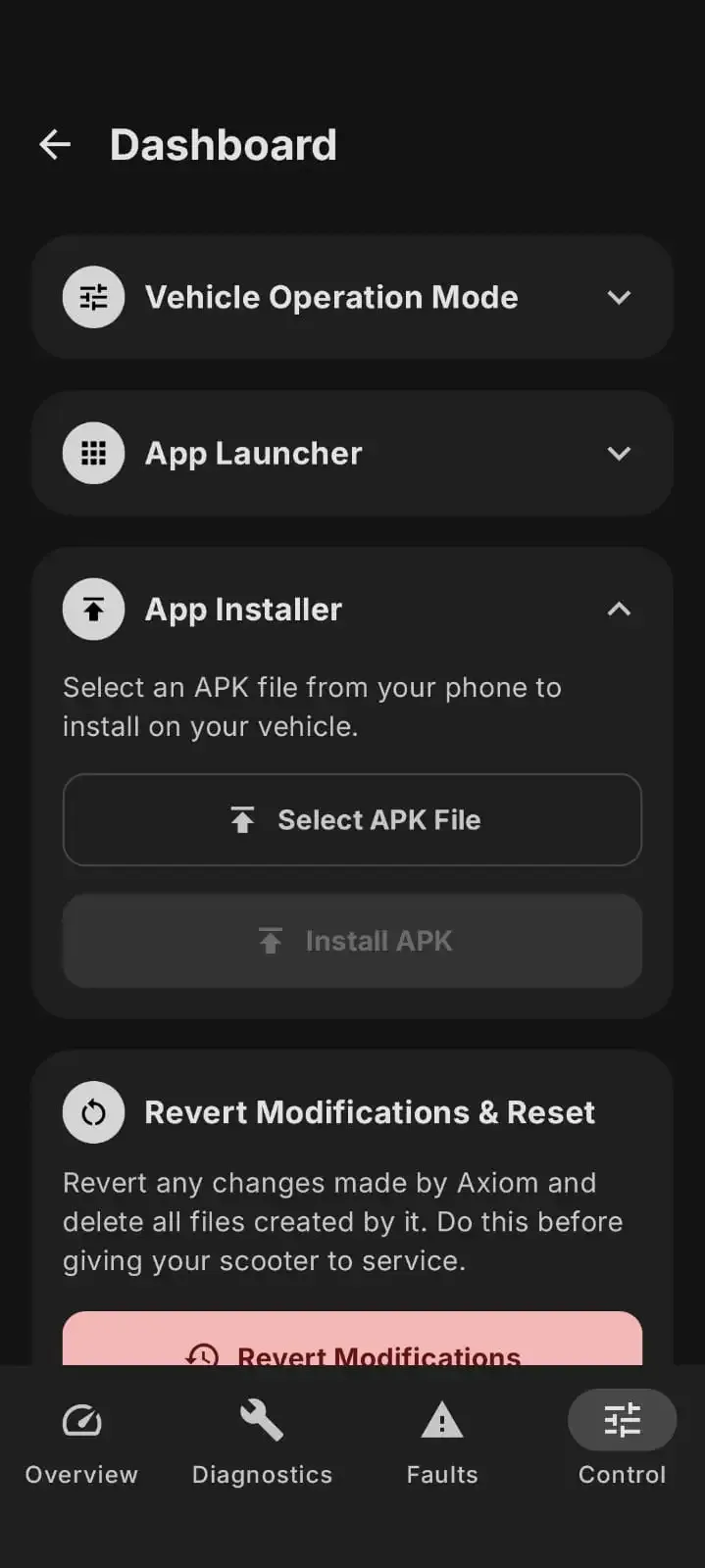 Select an APK file to install onto the scooter’s head unit.
- Once installation is complete, a prompt will appear asking if you want to launch the app. Tap Launch App to open it immediately on the scooter.
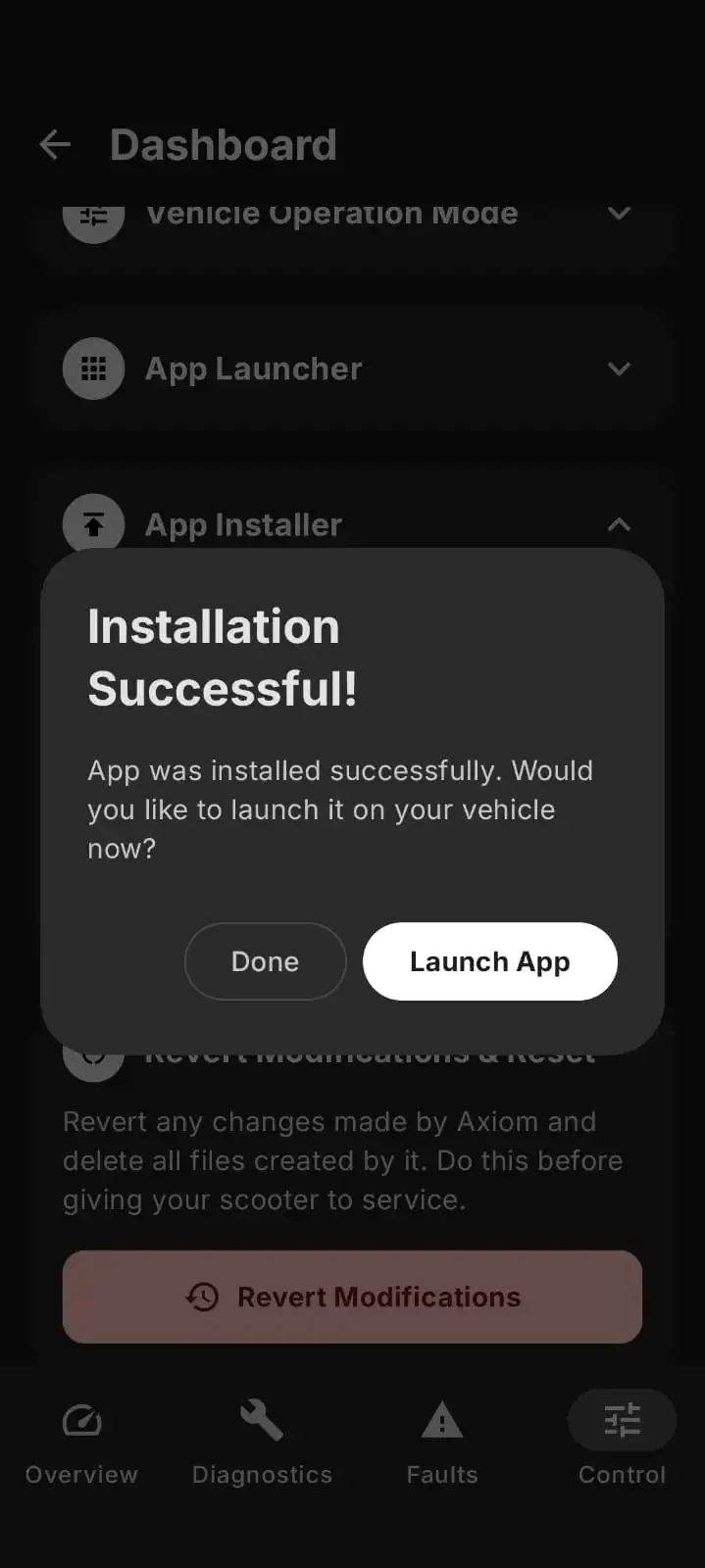 Tap Launch App to open the application directly after installation.
Accessing Diagnostic Mode from the HMI
Section titled “Accessing Diagnostic Mode from the HMI”Ola typically requires scanning a dynamic QR code / OTP to enter factory diagnostic mode from the scooter. You can bypass this requirement by changing your vehicle operation mode into Manufacturing mode directly within Axiom:
- In the Control tab, scroll down to the Vehicle Operation Mode card.
- Tap Manufacturing to switch the scooter out of Customer mode.
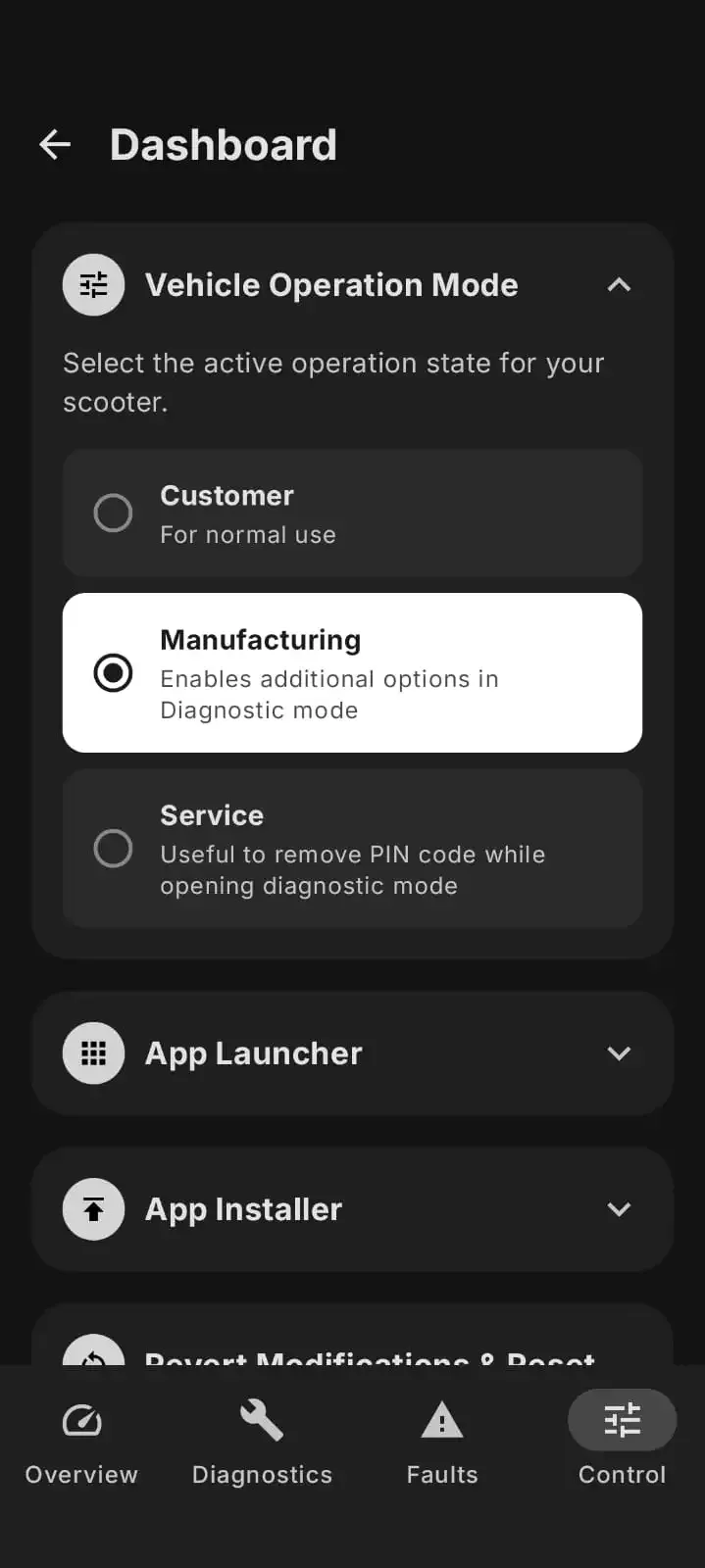 Switch the vehicle operation mode to Manufacturing.
Once the operation mode has been set to Manufacturing or Service mode, trigger the diagnostic screen directly from the dashboard:
-
Unlock the Scooter: Power on and unlock your scooter to reach the main MoveOS home screen.
-
Navigate to Ride Stats: Swipe left twice across the touchscreen to navigate to the Ride Stats screen.
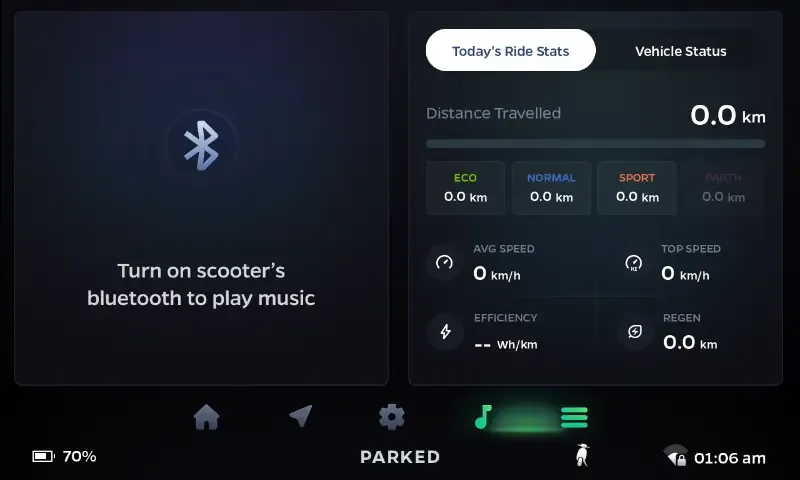 Navigate to the Ride Stats screen on the dashboard.
-
Tap Regen Stats 6 Times: Locate the Regen stats card on the display and tap it 6 times.
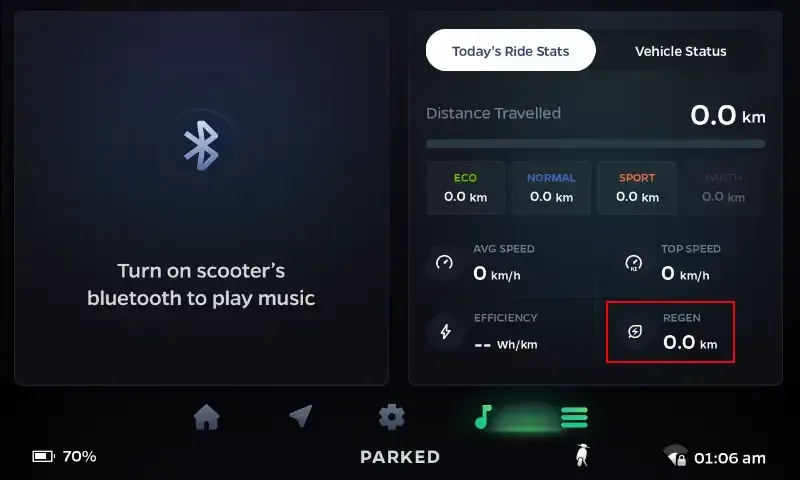 Tap the Regen stat box 6 times to open the PIN entry dialog.
A PIN keypad modal will open on the touchscreen.
-
Enter the Static PIN: Enter the passcode
560095.Because the scooter is operating in Manufacturing or Service mode instead of Customer mode, the HMI verifies this static factory PIN rather than demanding dynamic QR authentication.
-
Diagnostic Mode Opens: The factory diagnostic interface (
com.ola.mfgapp) will launch immediately on the dashboard display, allowing you to test vehicle hardware.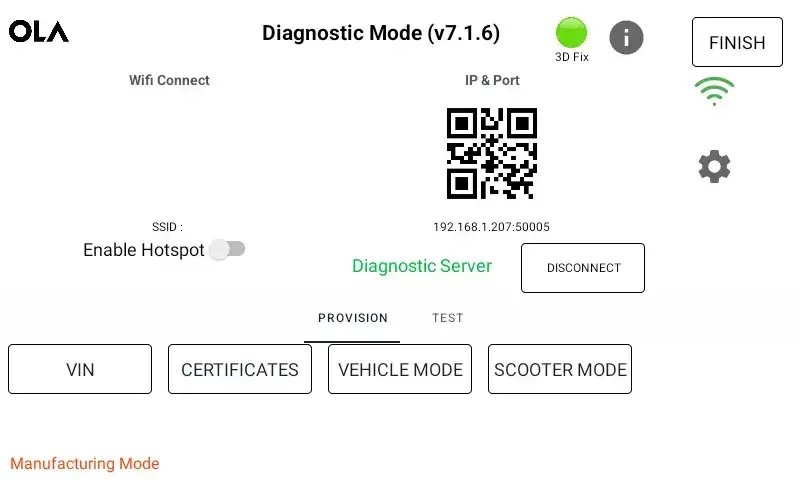 The onboard diagnostic mode interface.